How to Download Images from a URL List as a ZIP
Download images from a URL list as a ZIP. Follow examples for spreadsheet links, batch renaming, WebP conversion, resizing, and troubleshooting failed downloads.
To download images from a URL list, paste the direct image links into Veyvia's Bulk Image Downloader, select Load & Download Images, review the successful previews, and choose Download All as ZIP. You can keep the original files or change their format, maximum width, and filenames before export.
This workflow suits a column of supplier image links, a list exported from your own media library, or a small collection of design assets. You do not need to save each image through a separate browser tab.
You need links to the image files themselves. A product page, gallery page, or Google Images results page is not a direct image link. This tool downloads the links you supply; it does not extract every image from a webpage.
Image Downloader Extension vs. Online Images Downloader
An image downloader extension is a browser add-on that can help you find and select images on the webpage you are viewing. An online images downloader runs from a website without installing an add-on. The starting point matters: some online tools extract images from webpages, while Veyvia takes a list of direct image URLs.
| What to compare | Image downloader extension | Veyvia's online images downloader |
|---|---|---|
| Starting point | Typically images found on the current webpage | Direct image links pasted from a list or spreadsheet |
| Setup | Install a compatible browser extension and grant its requested permissions | Open the tool page; no extension or sign-in required |
| Finding images | Can help discover page images; coverage depends on the extension and how the page loads them | Does not scan webpages or discover image links |
| Batch output | Download, filtering, naming, and ZIP options vary by extension | Export successful downloads as a ZIP, with optional sequential names, resizing, and format conversion |
| Access and processing | Page access and data handling depend on the extension's permissions and implementation | Image fetching uses Veyvia's server proxy; previews, conversion, and ZIP packaging run in your browser |
| Typical use | Selecting images while browsing a product page, article, or gallery | Turning an existing collection of public image URLs into a ZIP |
Choose an extension when your first task is to find image links on a page. Choose the online image downloader when you already have the links and want to save or process them together. If an extension lets you copy direct image URLs, you can also use it to collect the links and then paste them into Veyvia for ZIP export.
Neither approach guarantees access to every original image. A page may expose only thumbnails or load more images as you scroll, and the source host may restrict downloads. In particular, an image visible in a signed-in browser session may still fail in Veyvia because its server proxy does not share that session.
Check Your Links Before Starting
Open one source URL in a new tab. It should return an image rather than a page with navigation, a login form, or a download preview. A URL ending in .jpg or .png is a useful clue, but an extension alone does not prove that the response is an image. Some valid image URLs use query parameters instead.
On many desktop browsers, right-clicking an image provides a Copy image address option. That can help you collect individual links. Check the dimensions: the copied address may point to a small thumbnail, not the original asset. For a larger collection, a media export or a supplier's direct-link column is more convenient.
| What you have | Can you paste it directly? | Preparation |
|---|---|---|
| Public JPEG, PNG, GIF, or WebP URLs | Yes, subject to file size and host restrictions | Put one URL on each line |
| Excel or Google Sheets image URL column | Yes, after copying the cells | Copy actual URLs, not display labels |
| A product or gallery page URL | No | Obtain the direct image links first |
| Images requiring another site's login | Usually no | Use that site's authorized export workflow |
| Files already saved on your computer | No URL download needed | Use a local-file conversion or resizing tool |
Start with two or three links before pasting the full list. The current proxy accepts source files up to 2 MiB each and recognizes JPEG, PNG, GIF, and WebP. SVG and AVIF are not accepted by the current implementation, even if older interface copy suggests broader support.
Step by Step: Turn Image Links into a ZIP
1. Paste Your Image URLs
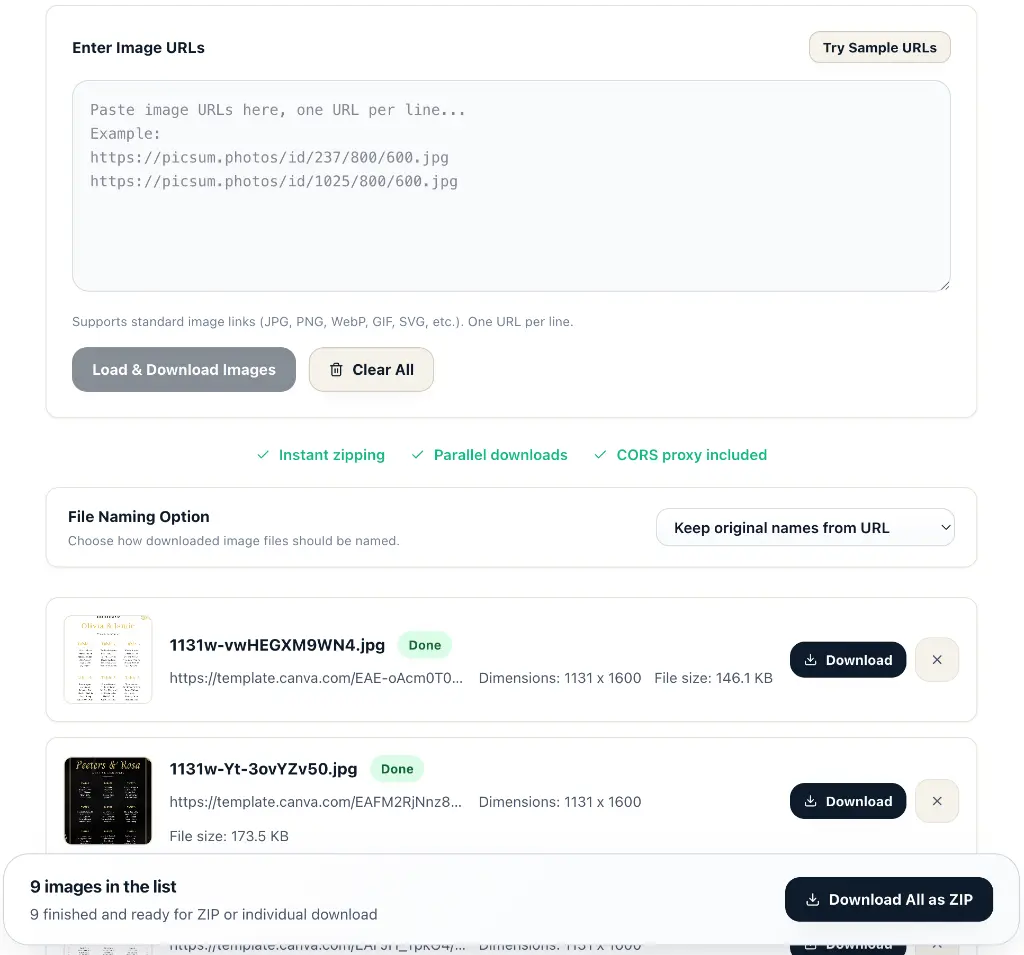
Open the image URL downloader and paste your links into Enter Image URLs, one per line. This is the easiest input layout to inspect and correct. The parser can also find HTTP and HTTPS links in quoted lists and space-separated text, but you do not need to reformat a spreadsheet column into code.
Copy only the URL column. Including other columns can accidentally add product-page links to the download queue. Keep the original spreadsheet nearby if you need to match the saved images with product records later.
Existing interface illustration showing where to paste links. Some supporting text in this older image differs from current proxy limits; use the supported formats and limits described in this guide.
2. Load and Review the Images
Select Load & Download Images. The tool fetches images in parallel and displays a status for each entry. Successfully fetched images show a preview, file size, and dimensions when the browser can read them.
At this stage, files have been fetched into the page; they have not all been saved to your device. Check for thumbnails, unrelated assets, and failed entries before exporting. Remove unwanted items from the list. Identical links are not automatically deduplicated, so clean repeated URLs beforehand if you want one copy of each image.
The dimensions and size shown on these cards describe the fetched source. Changing export settings does not turn those cards into previews of the resized or converted output. Inspect the saved files when verifying output dimensions or quality.
3. Choose How to Save the Files
For unchanged copies, select Original Format and leave Limit Max Width disabled. This preserves the fetched image bytes without running them through a new image encoding step.
Choose PNG, WebP, or JPG when you need a consistent output format. The compression quality control applies to WebP and JPG. Enable Limit Max Width only when you want to reduce large dimensions; it preserves the aspect ratio and does not enlarge smaller images.
Under File Naming Option, keep the names from the URLs or choose sequential naming with a prefix such as supplier-spring. A sequential ZIP export then uses names such as supplier-spring-1.jpg and supplier-spring-2.jpg. The prefix applies across the batch; there is no separate filename column import.
4. Export and Verify the ZIP
Choose Download All as ZIP, save the archive, and extract it. You can also save a successful image individually using its download control. Only successfully fetched images still present in the list are included in the ZIP.
Compare the extracted file count with the completed count and your original list. Open a few saved images to check dimensions, appearance, and filenames. If image conversion fails, the export code can fall back to the original file, so a completed fetch does not guarantee that every requested conversion succeeded.
Example 1: Try Two Sample Image URLs
Use Try Sample URLs to populate the tool's built-in examples, or paste these two URLs from that sample set:
https://picsum.photos/id/237/800/600.jpg
https://picsum.photos/id/1025/800/600.jpg
These are demonstration images provided by Lorem Picsum, whose documentation explains how an image ID and dimensions specify a sample. Availability depends on the external image service.
- Paste the two links and select Load & Download Images.
- Confirm that both entries finish and show 800 × 600 source dimensions.
- Keep Original Format and leave resizing disabled.
- Choose sequential naming and enter sample as the prefix.
- Download and extract the ZIP, then check for sample-1.jpg and sample-2.jpg.

Source: Lorem Picsum image 237. This is a source image for the exercise, not a screenshot of a completed Veyvia download.
Both sample URLs end in 600.jpg. That makes them useful for understanding filename collisions: if you keep original URL names, the ZIP adds a suffix to distinguish repeated names. Sequential naming produces a more recognizable pair. Neither option identifies what is pictured or creates descriptive filenames automatically.
Example 2: Download Supplier Images from a Spreadsheet
Suppose a supplier sends a sheet with SKU, product name, and image URL columns. You need a folder of product photos to review before adding them to a store. Copy a small selection from the image URL column, excluding the header, and paste it into the downloader.
Use Original Format without resizing for the first export. Keeping the supplied files makes it easier to compare them with product records and decide which images need editing later. If the URL filenames already contain SKUs, keeping original names can preserve that useful connection.
If the URLs use generic names, process one product group at a time and choose a meaningful prefix, such as mug-blue. Sequential naming organizes the batch, but it does not read the SKU column or match names to spreadsheet rows. In particular, a failed URL is omitted from the ZIP, so exported numbers should not be treated as permanent row identifiers.
After extracting the archive, check that each product has the intended front, back, or detail view. If a file is missing, inspect its original URL before retrying. A supplier portal link may require login, and a high-resolution source above 2 MiB will exceed the current download limit. Ask for a suitable public image export when needed.
Example 3: Download and Resize a Batch as WebP
Suppose you already have public JPEG links for a set of article photos and want smaller copies for a website. Fetch a small batch, choose WebP Format, start with the default quality of 82, and enable a maximum width suitable for your layout.
For a reproducible sizing exercise, use the two 800 × 600 sample images above and set the maximum width to 400. With successful conversion, each output should be 400 × 300 because both dimensions scale by the same factor. An image narrower than 400 pixels would retain its dimensions.

Source: Lorem Picsum image 1025. Use this source for the resizing exercise; the image shown here is not the converted WebP output.
Download the batch and inspect the output at its intended display size. Check detailed textures, text, and edges before deciding whether the quality setting is sufficient. The exact output file size depends on the image and encoder; this example does not promise a particular compression percentage.
If you already have files on your device, Resize Images or the image converter provides a more direct starting point. If file size remains the main issue, use image compression as a follow-up step.
Choose Settings for the Result You Need
| Goal | Output format | Width setting | What to check |
|---|---|---|---|
| Preserve the fetched file | Original | Disabled | Source URL points to the version you want |
| Prepare smaller website photos | WebP | Match the intended layout | Detail and exported size |
| Save photos for a JPG workflow | JPG | Optional | Compression artifacts; no transparency |
| Keep a transparent graphic | Original, PNG, or WebP | Optional for static images | Transparent edges in the saved file |
| Preserve animated GIFs | Original | Disabled | Animation still plays after extraction |
Resizing and conversion use a still-image canvas. They do not preserve animation. JPG cannot retain transparency, and the tool does not offer a background-color control for flattening transparent images. Keep the original or choose a transparency-capable format when that matters.
ZIP packaging groups files into one download. It does not itself resize images, and already compressed photos may not become substantially smaller inside an archive. Choose format and width settings based on the files you need after extraction.
Why an Image URL Download Might Fail
A Failed status is a reason to check the source, not necessarily to repeat the same request immediately. Work through the relevant condition below.
| Symptom or source condition | Likely explanation | Next step |
|---|---|---|
| Link opens a normal webpage | It is not a direct image URL | Copy the image address instead |
| Link is broken or has expired | The host no longer serves that URL | Obtain a current link |
| Image works only while signed in elsewhere | The proxy does not share that browser session | Use the source site's export option |
| Source is larger than 2 MiB | It exceeds the proxy limit | Obtain a smaller source version |
| Source is SVG, AVIF, or an HTML response | The proxy does not accept it | Obtain a supported image file |
| Many requests fail during a large batch | Rate limiting or host restrictions may apply | Pause and retry a smaller group |
| Loading stalls or times out | The source may be slow or redirect repeatedly | Check the link and retry later |
Setting a smaller output width cannot fix an oversized source download: fetching happens before resizing. Likewise, choosing PNG as the output cannot make an unsupported source format pass the proxy's input checks.
Start with a few dozen images for a working batch and reduce that number on a memory-constrained device. The current default proxy rate limit is 60 requests per minute per client IP, though deployment settings can change it. There is no promise of unlimited throughput, and repeated retries also consume requests.
The proxy helps with browser cross-origin restrictions, but the source host can still deny access. URLs and image responses pass through Veyvia's server; this is not an entirely offline workflow. The current download path does not save image files to persistent server storage. Browser memory holds the fetched images for preview and export, so save your ZIP before closing or reloading the tab.
Frequently Asked Questions
Can I download all images from a website URL?
Veyvia needs direct image URLs. It does not scan webpages, follow gallery links, or discover images across a website. Obtain the image links first, then paste that list into the downloader.
Can I download images from Excel or Google Sheets?
Yes, by copying cells containing the actual image URLs and pasting them into the input box. There is no spreadsheet upload or automatic mapping of SKU columns to filenames. Copy URL values, not embedded pictures or hyperlink labels.
Which image formats and file sizes are supported?
The current download proxy recognizes JPEG, PNG, GIF, and WebP, with a limit of 2 MiB per source image. SVG and AVIF are not currently accepted. PNG, WebP, and JPG are available as conversion outputs when the browser can decode and export the image.
Does downloading reduce image quality?
Original Format with Limit Max Width disabled exports the fetched image bytes without re-encoding. Conversion or resizing creates a new image. JPG and WebP quality settings can introduce visible differences; inspect the exported file before using it.
Can I keep GIF animation and PNG transparency?
Use Original Format and disable resizing to preserve the fetched file. Conversion and resizing use a still-image canvas and do not preserve animation. JPG cannot preserve transparency; choose PNG or WebP for transparent images and check the result.
Why are some images missing from my ZIP?
The ZIP includes only successfully fetched items still in the list. Failed, pending, and removed entries are excluded. Compare the completed count with your source list, check failed links, and retry after correcting the problem.
Do I need to install an extension or sign in?
The downloader runs from the tool page without an extension or a sign-in step. Fetching uses a Veyvia server proxy; previews, conversion, and ZIP packaging happen in your browser. Keep the tab open until you save the files.
Download Your First Batch
Open the Bulk Image Downloader, try the sample URLs, and export a small ZIP. Once you have checked the files, repeat the same process with your own image links and the naming, format, and width settings your project needs.