Old photo restoration
A new chapter for old memories.
Faded portraits, creased prints, family albums. Give your favorite old photo a place to begin again.
Your old photo
Sign in to restore your photo. Failed generations are refunded.
Your photo, before and after
Example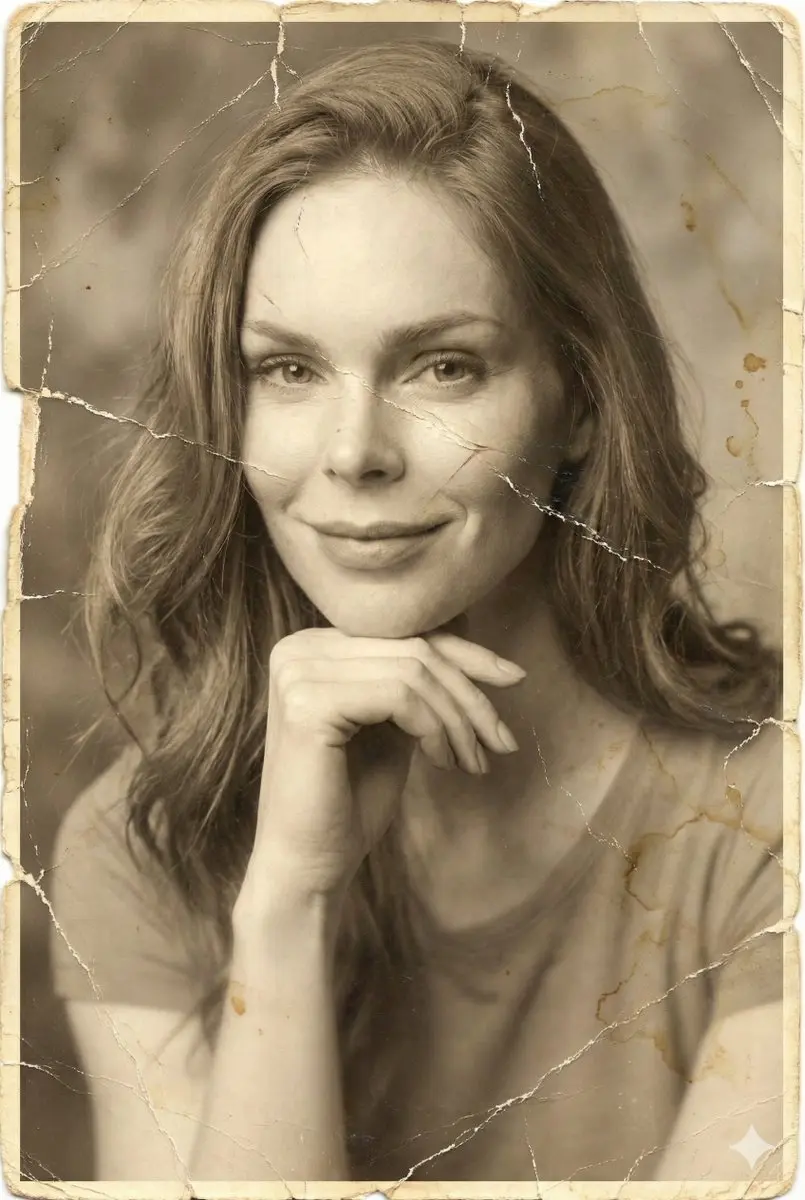
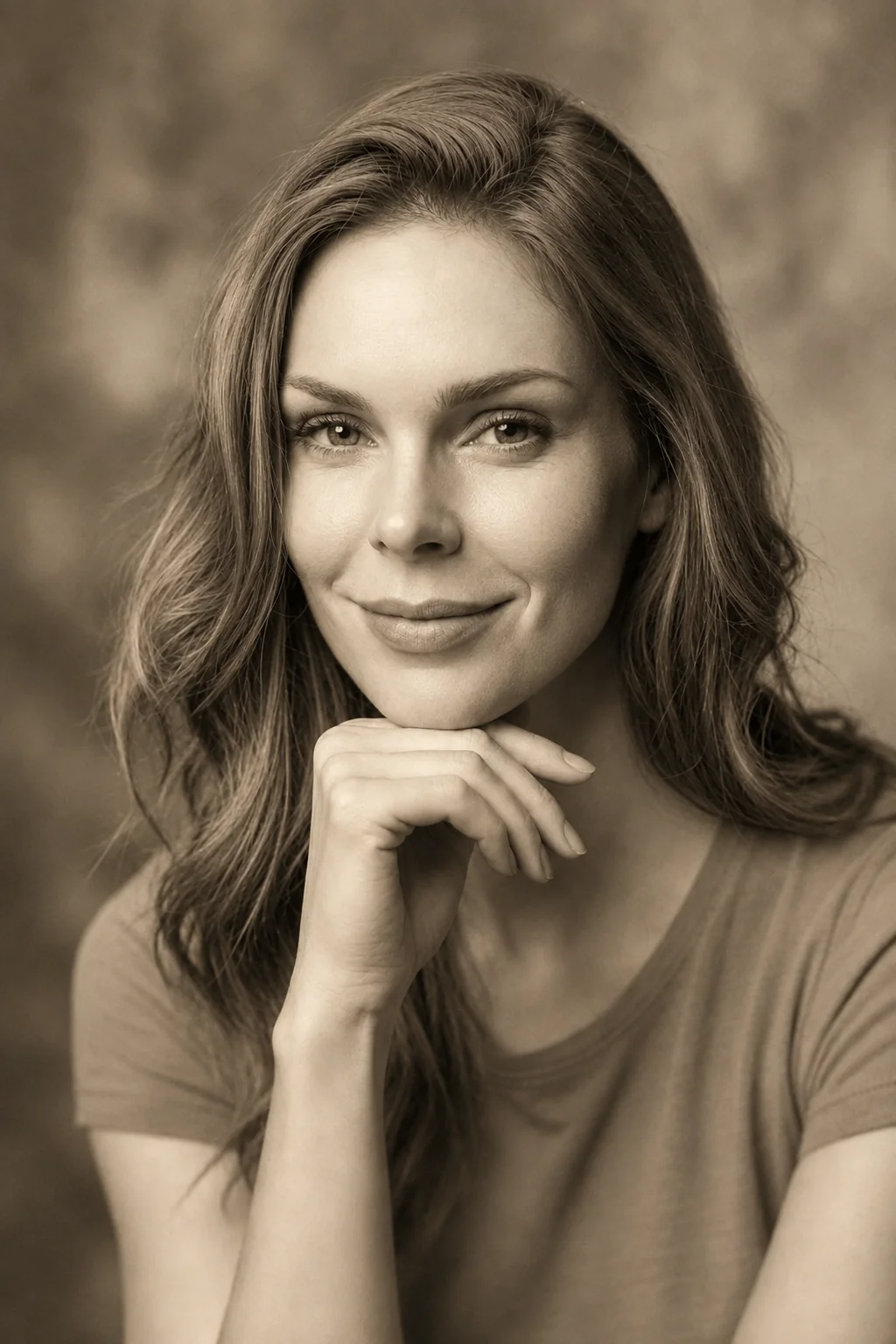
The preview stays local until you click Restore. Your photo is then uploaded for AI processing, and the result is saved to your account.
Old photos, restored
Compare the original photos with their AI restoration results.
Drag to compare
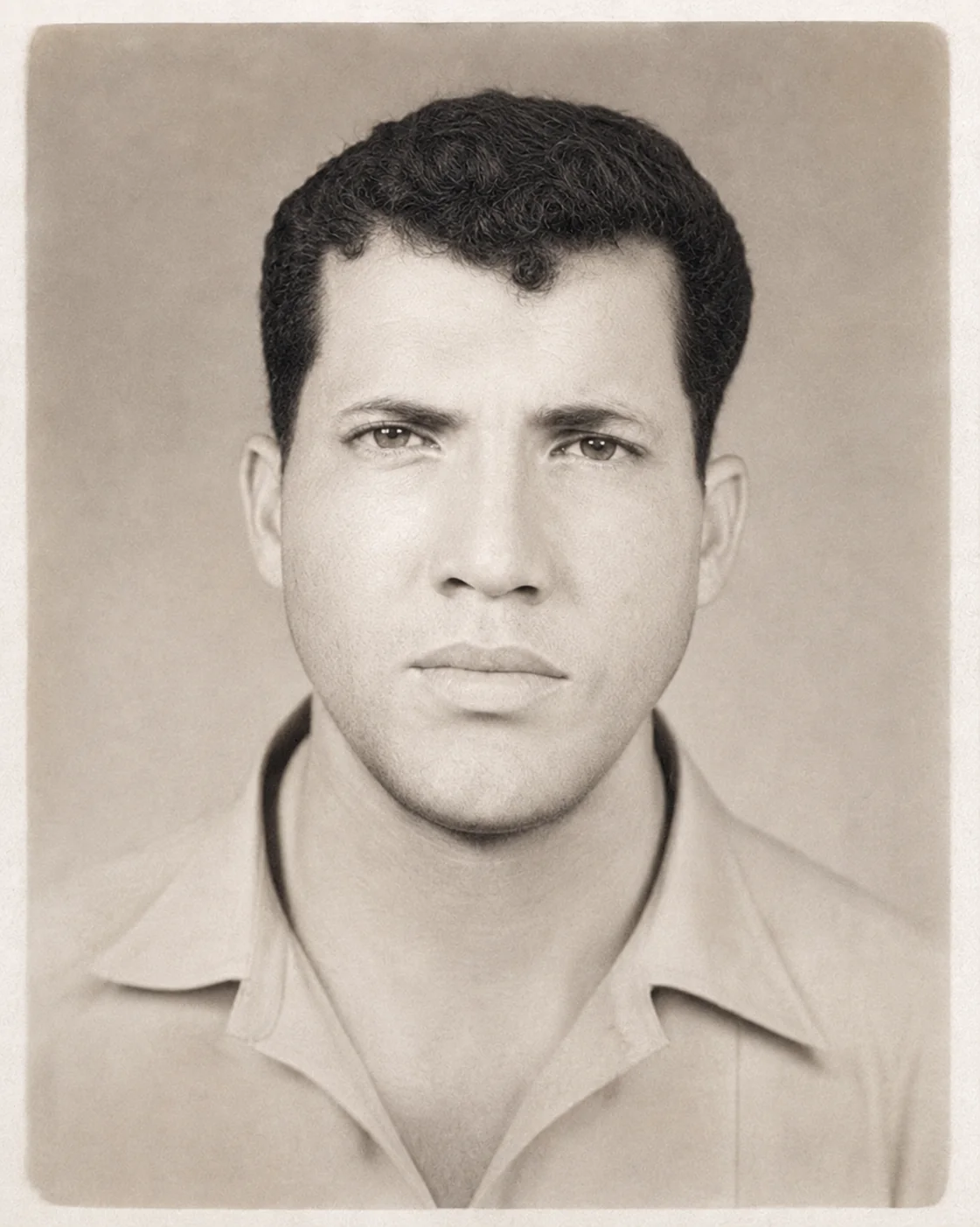
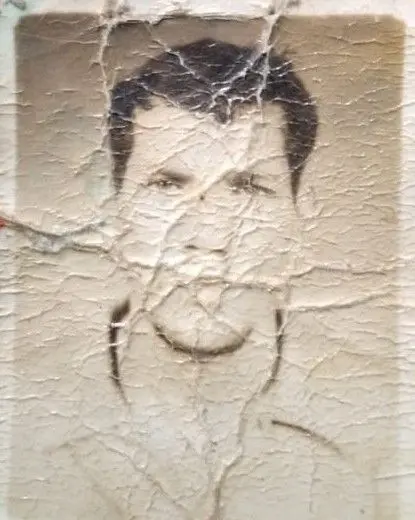
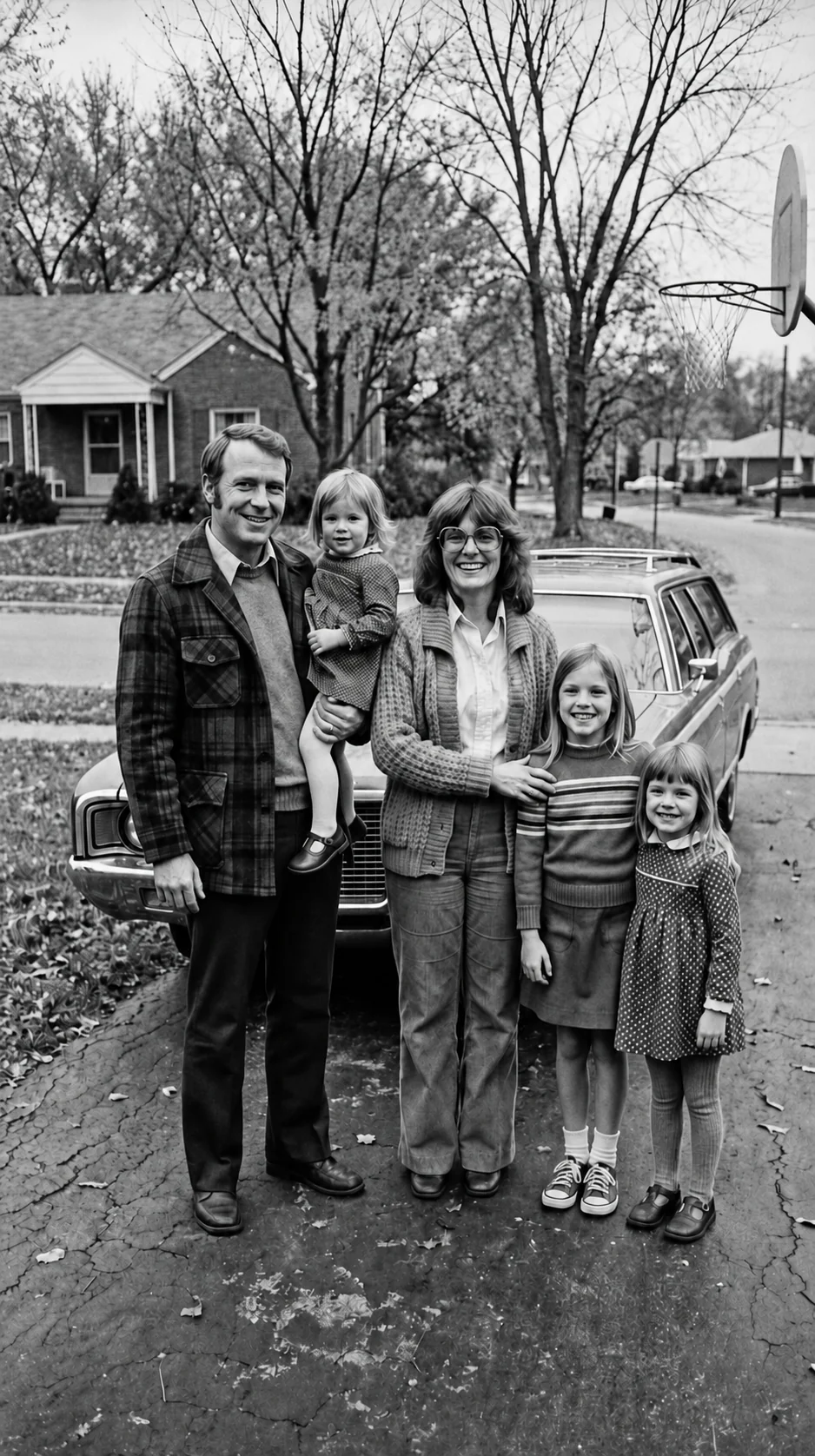
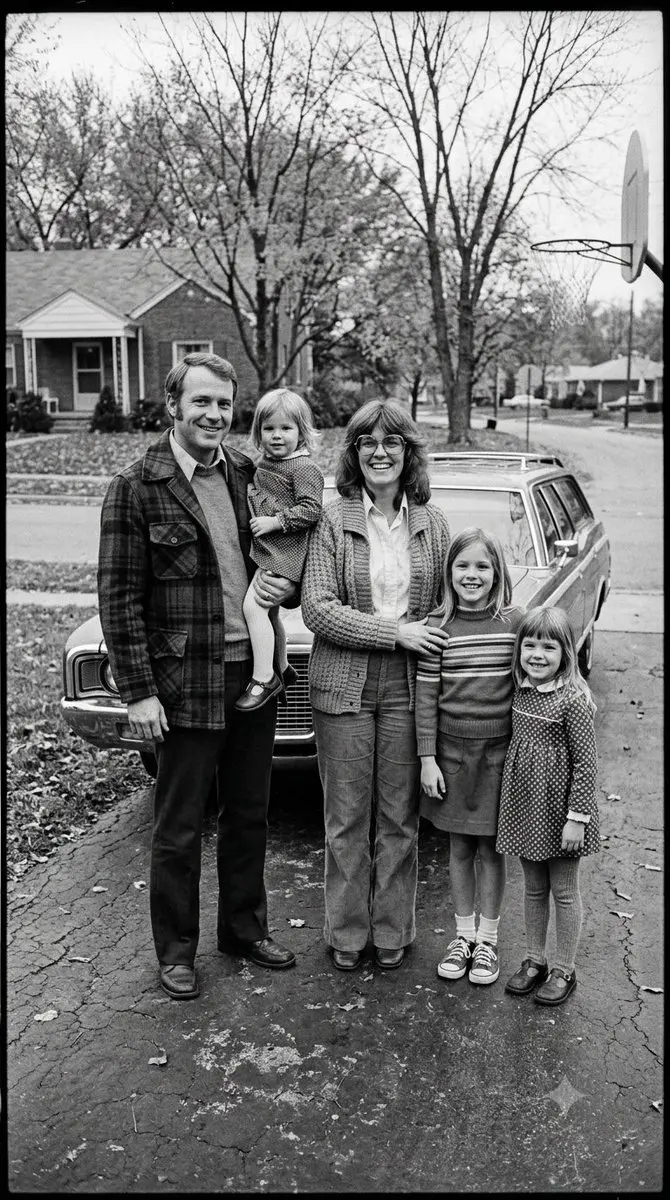
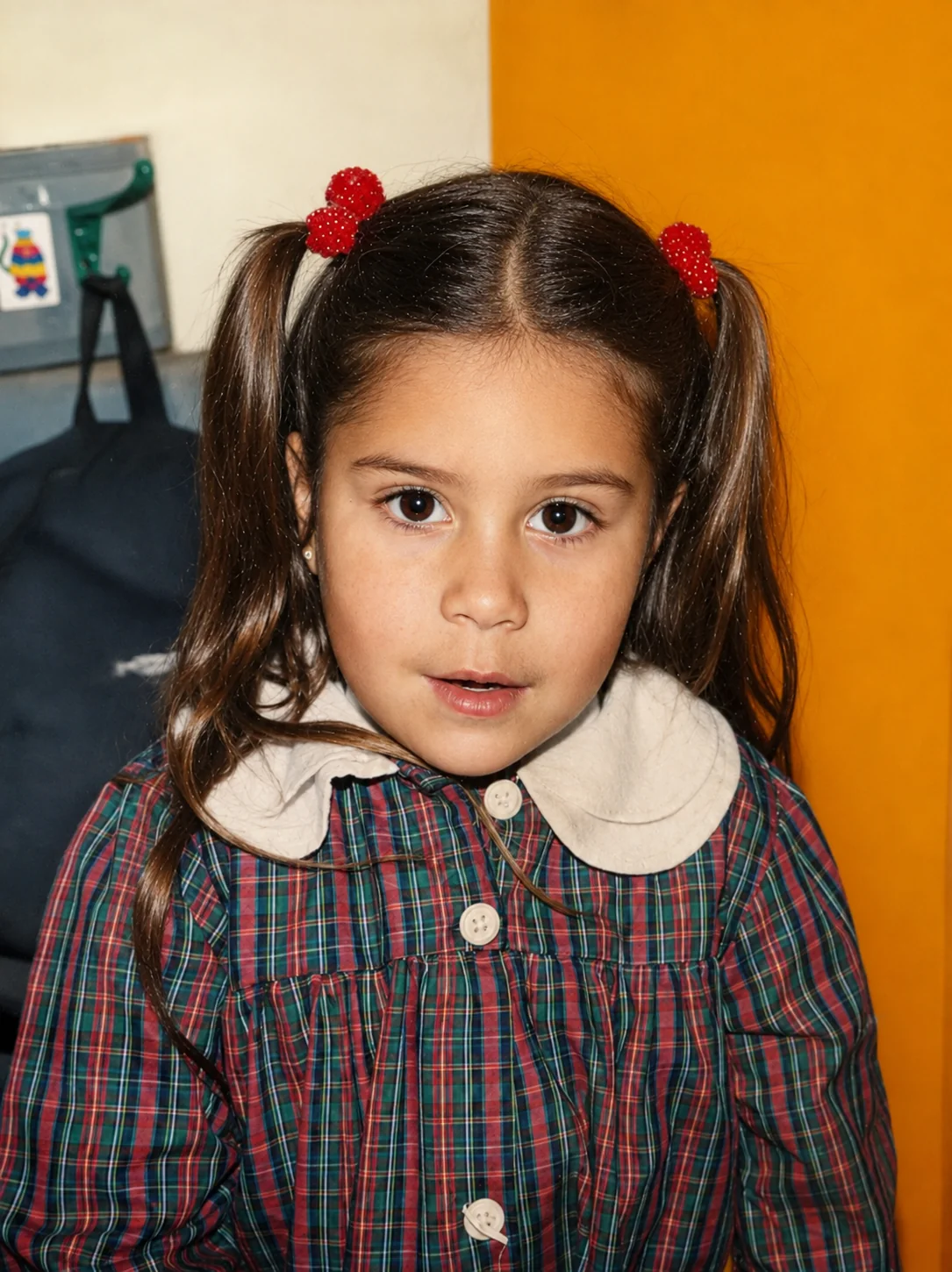
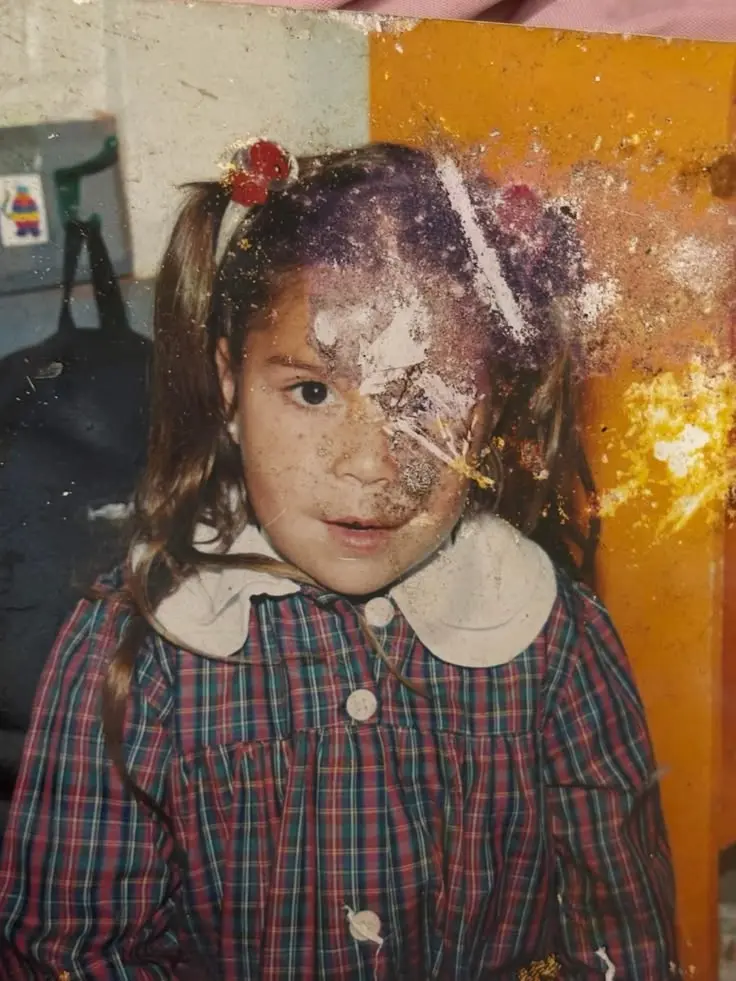
Photo restoration prompt examples
More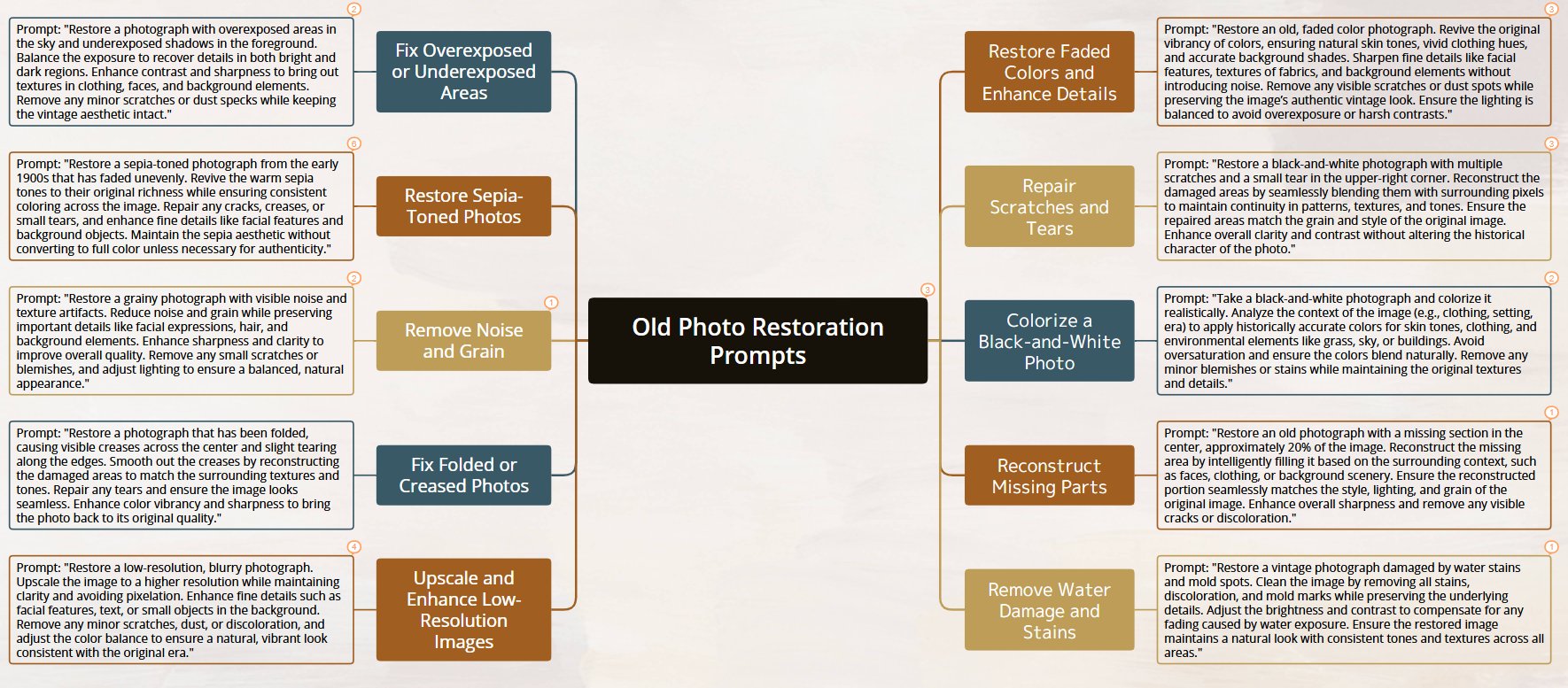
Restore a black-and-white photograph with multiple scratches and a small tear in the upper-right corner. Reconstruct the damaged areas by seamlessly blending them with surrounding pixels to preserve continuity in patterns, textures, and tones. Match the repaired areas to the grain and style of the original image. Enhance overall clarity and contrast without altering the historical character of the photo.
View prompt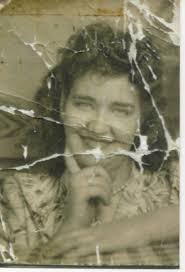
"Restore this old photo into professional portrait of DLSR - quality colour and detail, using an advanced upscaling algorithm comparable to the results from canon EOS R6 II. Ensure the restored the image looks natural, retains exact facial features, has great clarity......"
View prompt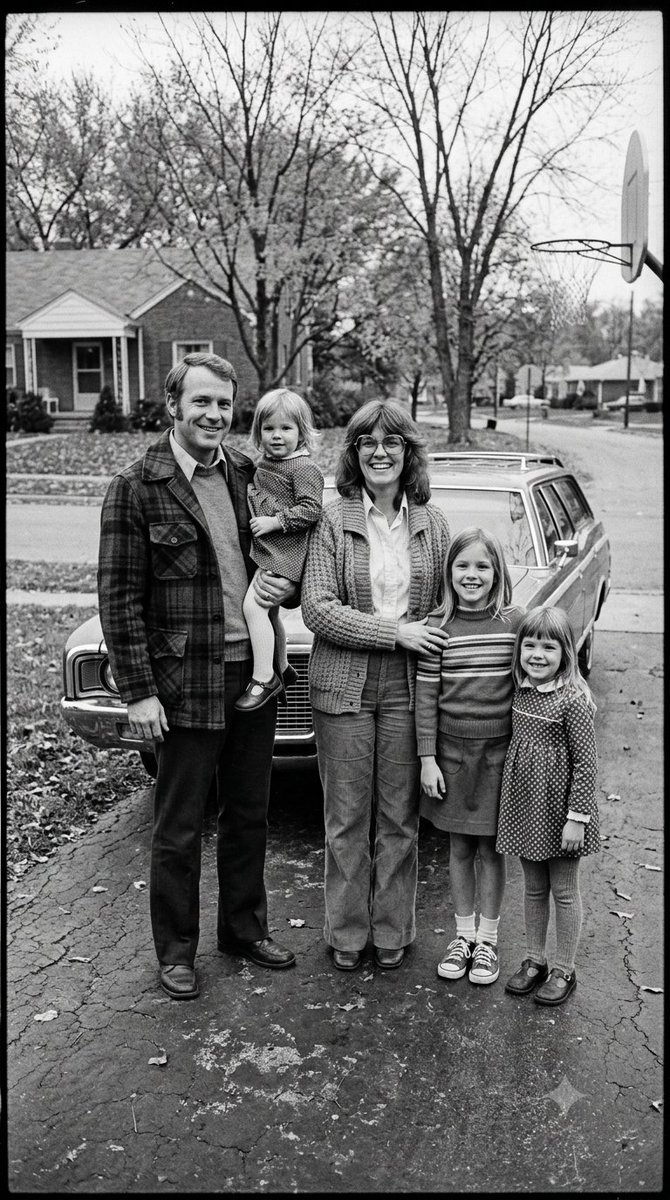
🎨 Prompt Gemini : Restoration photography ⚙️ This photo is Fictional- Generated by Gemini Restore this old black-and-white family photo with high realism and respect for the original image. Sharpen the photo, reduce noise and grain, remove minor damage, stains and blur, and improve overall clarity while preserving natural facial features, expressions, clothing details and the original composition. Colorize the image accurately and tastefully in a way that fits the historical period, likely late 1970s to early 1980s. Use realistic, slightly muted vintage tones typical of that era, with natural skin tones, believable hair colors, and period-appropriate colors for clothing and background. Keep the result authentic, subtle and historically plausible — not overly saturated, not too modern-looking, and not artificially beautified. Maintain the original proportions, group arrangement and photographic feel of a vintage family portrait. Final result should look like a professionally restored archival photo: clean, sharp, denoised and naturally colorized. #aiart #digitalart #ai #gemini #photography #photographyrestoration #PhotoRestoration #OldPhotoRestoration #PhotoColorization #VintagePhotography #RestoredPhoto #FamilyHistory #HistoricalPhotos #BeforeAndAfter #PhotoEnhancement #MemoriesRestored
View promptFrom the photo album to a fresh copy
Start with a clear scan
Scan your print or photograph it in even light. Keep the photo flat and avoid glare.
Choose what to restore
Preview your photo and select the details you want to repair. Colorization is optional.
Review and keep a copy
Compare the restored photo with your original, then download a new copy to keep or share.
A few things to know
How do I restore an old photo?
Upload a photo, choose scratch repair, face enhancement or colorization, then sign in and click Restore photo. AI processes the image using your account credits. You can preview and download the result when it is ready.
What kind of photo should I use?
Start with a scan or a clear photograph of your old print. JPG, PNG, and WebP files up to 20 MB are supported for preview. Avoid glare and make sure the whole print is visible.
Will black-and-white photos stay black and white?
Colorization is off by default. Leave it off to preserve black-and-white, sepia or existing colors, or turn it on to request color. Added colors are an interpretation, not a record of the original scene.
More ways to work with your photos
Bring a portrait into focus, refine the details, or create a new family keepsake.
 Example photo
Unblur photo
Bring soft photos into focus while keeping the people and moments you recognize.
Explore tool Example photo
Image enhancer
Improve clarity, lighting, and fine detail for photos ready to share or print.
Explore tool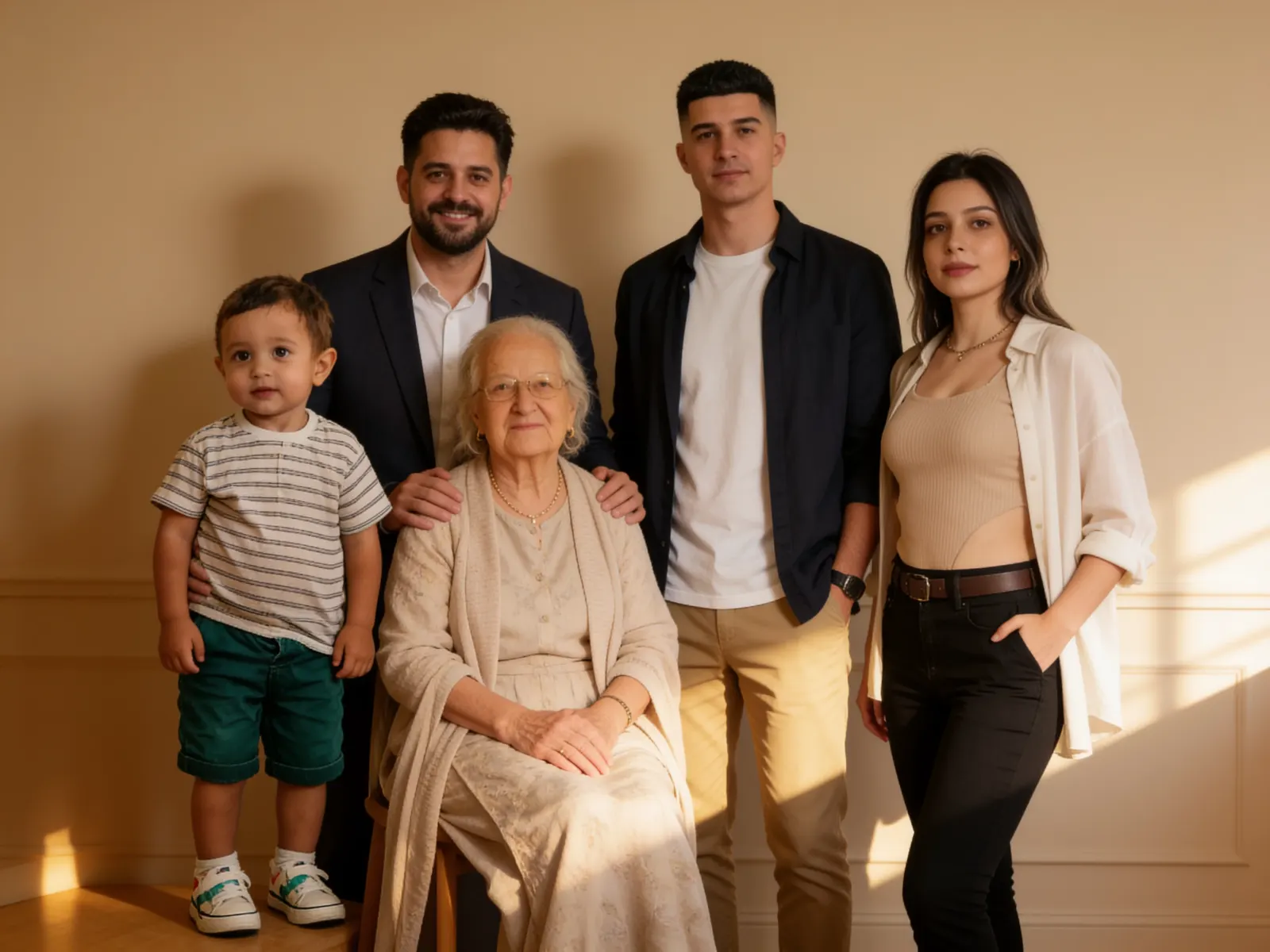 Example photo
Family photo
Bring individual portraits together in a family photo to keep and share.
Explore tool