AI Church Invitation Card

AI Church Invitation Card

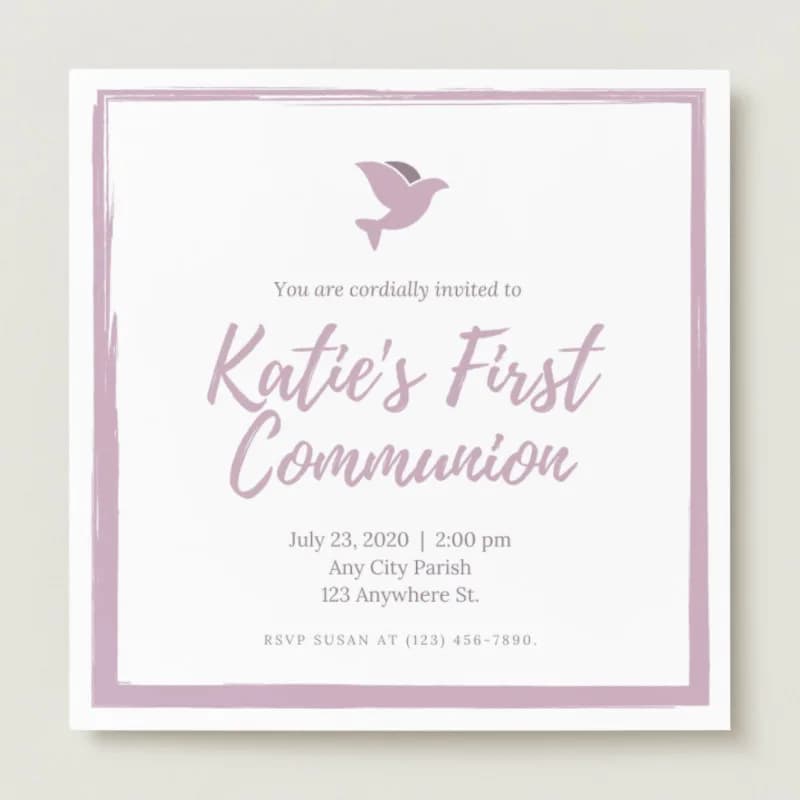
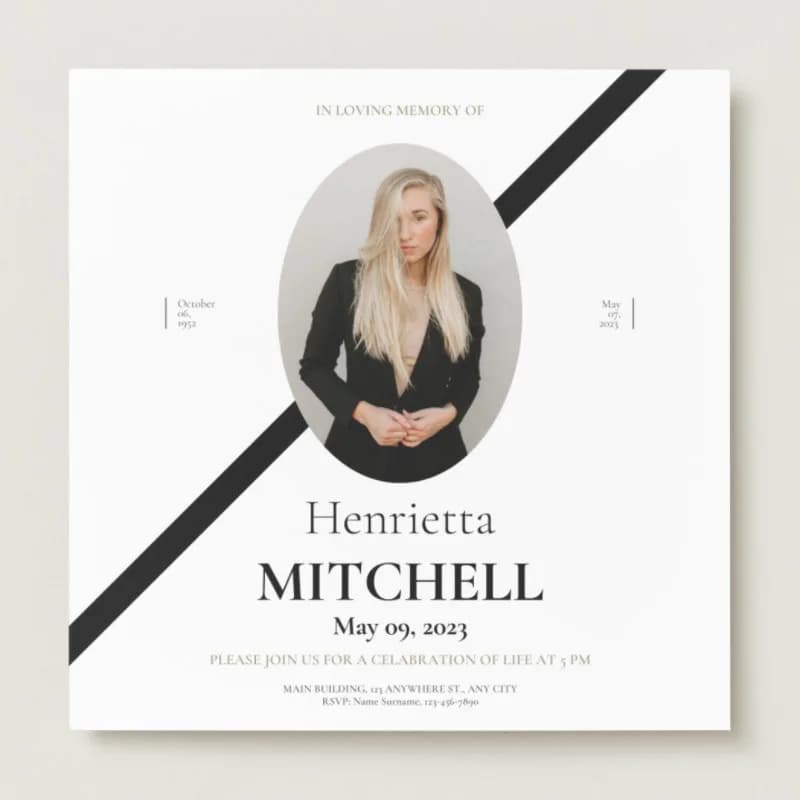
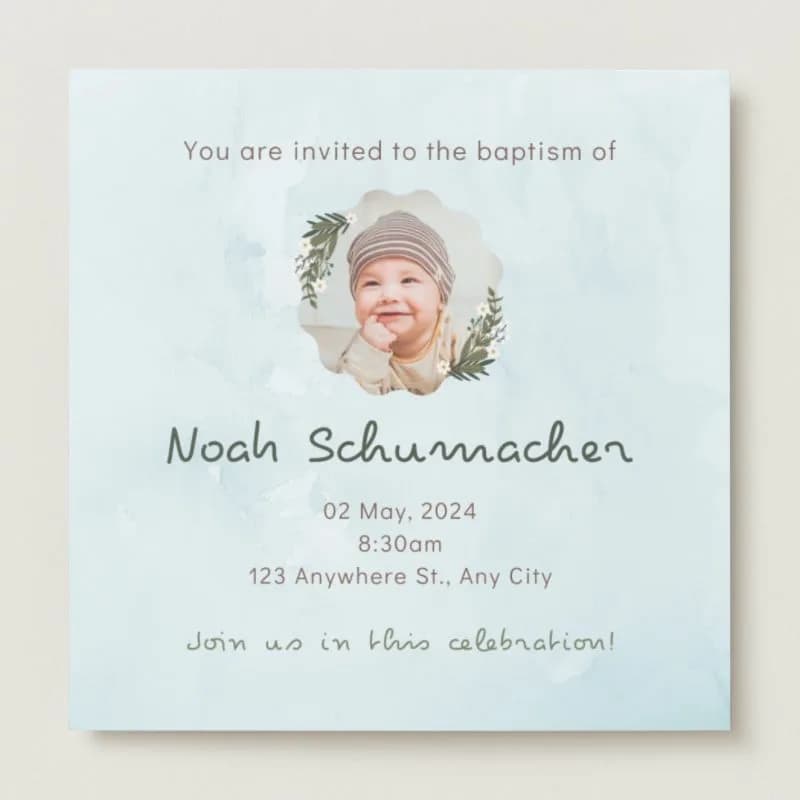
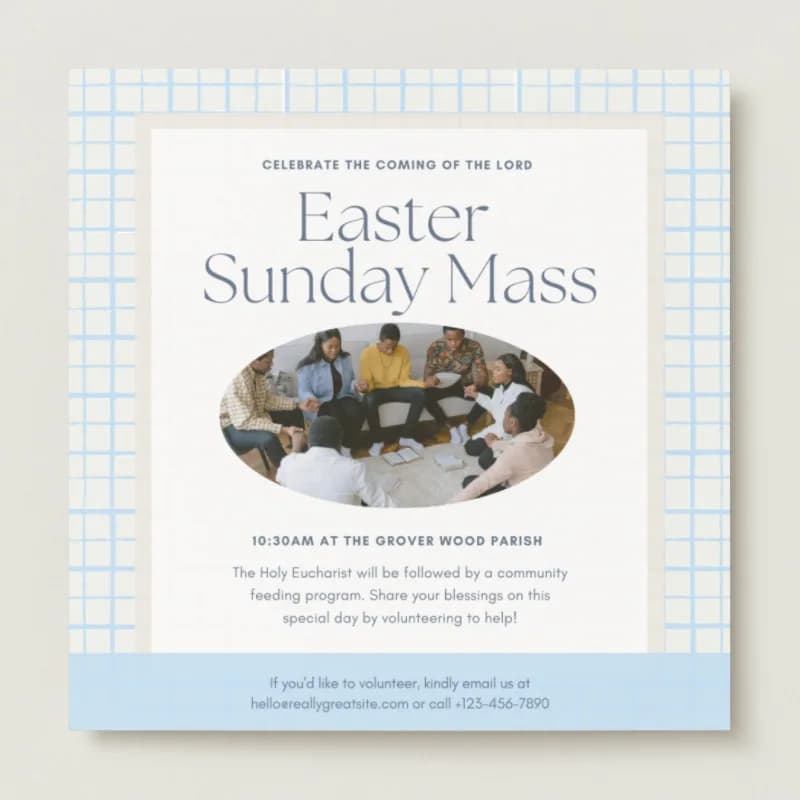
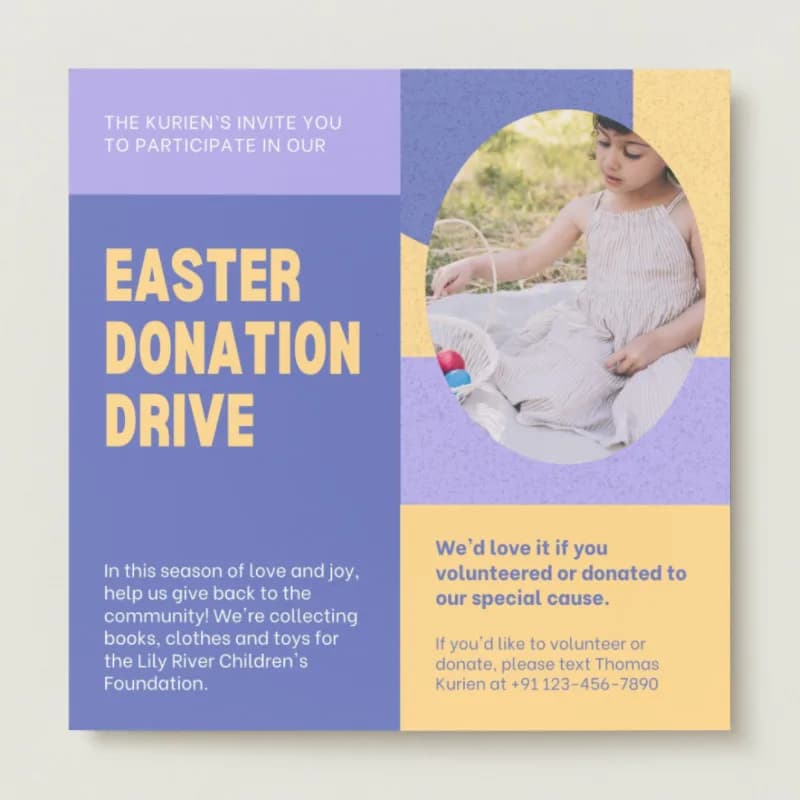
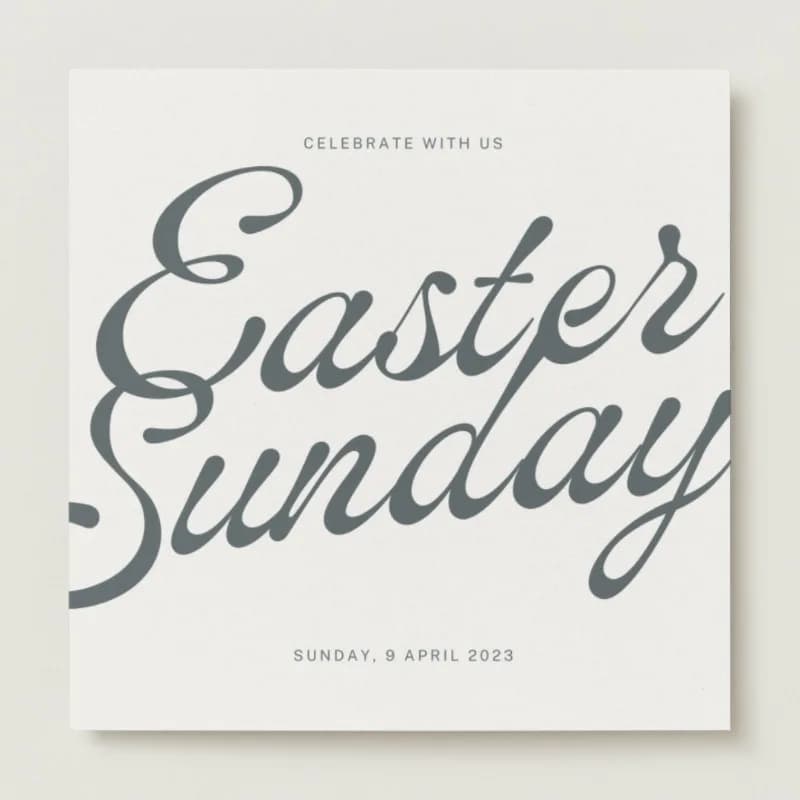
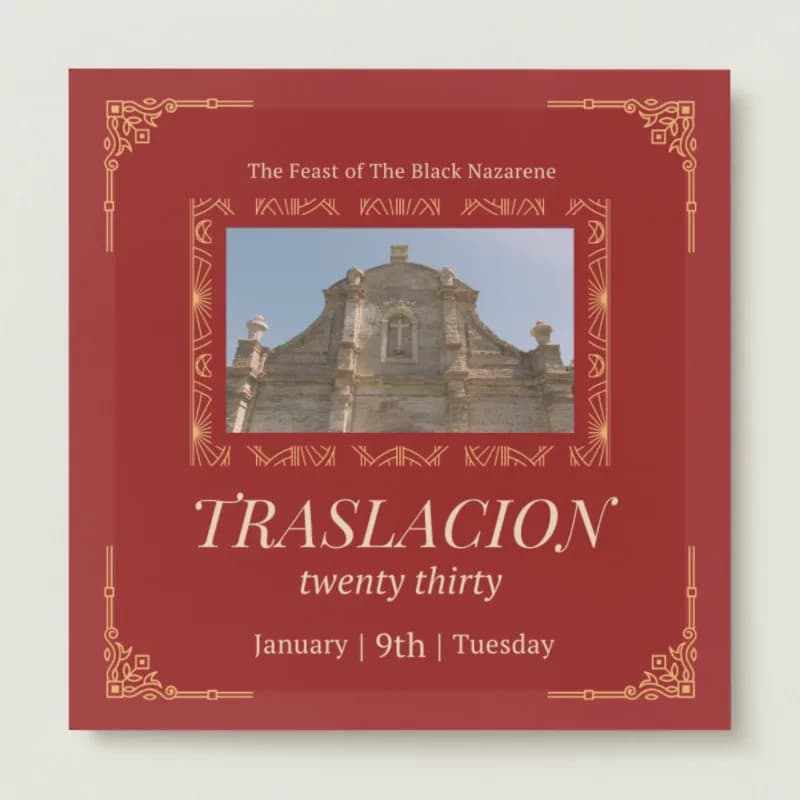
Discover beautifully designed Church Invitation Templates that make it simple to welcome your community with warmth and clarity. Whether you’re planning a Sunday service, Bible study, youth fellowship, or a special holiday event, these templates help you create professional invitations in minutes. Our collection features customizable layouts with elegant typography, uplifting imagery, and space for essential details like date, time, and location. You can personalize colors, add your church logo, and include meaningful scripture verses to reflect the spirit of your gathering.

Pick a reference style, then generate a new image with the prompt, reference image, and aspect ratio prefilled.

Visual reference set
church invitation
Library size
2 public prompts
Visual reference set03 / REF
AI Church Invitation Card reference 101
AI Church Invitation Card reference 202
AI Church Invitation Card reference 303
VEYVIA / CHURCH-INVITATIONCURATED
Prompt library

Choose the closest frame to begin.

Open any reference to inspect the full prompt, or take its image and aspect ratio straight into the generator.

2 public prompts
AI Church Invitation Card prompt 101
church-invitationminiature-diorama3d-render

Hyper-realistic miniature diorama of [CHURCH NAME] in [CITY, COUNTRY], photographed from a 45-degree top-down view. Place the intricate architectural model on a sturdy [TABLETOP MATERIAL] base and emphasize its [ARCHITECTURAL STYLE], signature facade, towers, windows, and surrounding grounds. Match the real setting with miniature streets, trees, cars, and tiny visitors. Use physically realistic light and shadows, sharp focus on the church, gentle tilt-shift blur toward the edges, macro-lens scale cues, and a clean vertical 2:3 composition with no watermark.

AI Church Invitation Card prompt 202
churchinvitationchurch-invitation

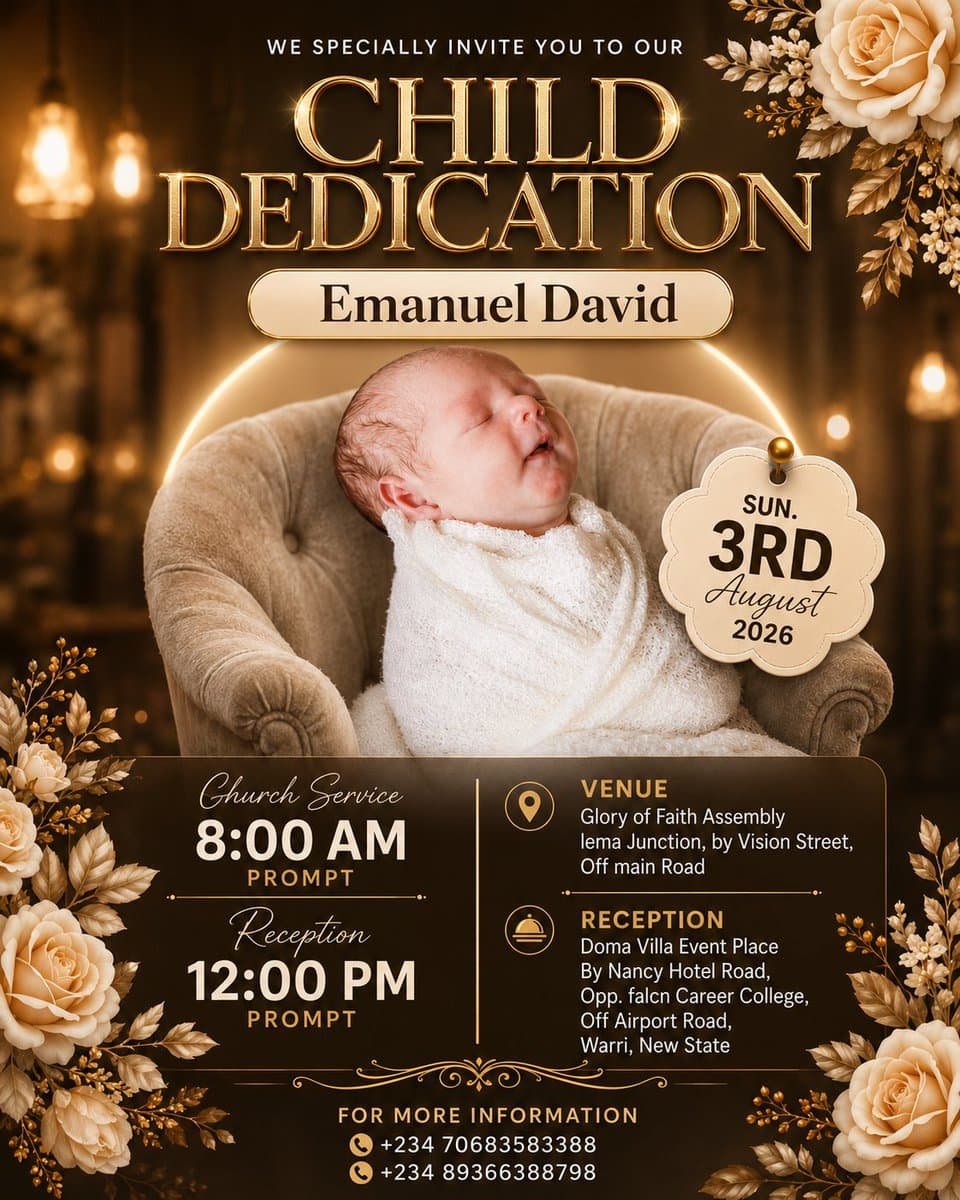
Design a premium, elegant, ultra-realistic church invitation flyer with a warm, luxurious, modern aesthetic. Use the uploaded portrait as the main focal point while preserving the subject's exact identity, skin tone, facial features, hairstyle, expression, and proportions. Use a soft warm-brown, cream, champagne-gold, and mocha palette. Portrait orientation, 4:5 ratio. Center the subject inside a soft plush chair with a subtle oval glow, a beautifully blurred luxury interior, warm bokeh lights, and elegant floral decorations in the corners. Balance generous negative space with smooth gradient overlays for readable typography. Combine a luxury serif with a modern sans-serif. Include reusable placeholders for [INVITATION LINE], [EVENT TITLE], [HONOREE NAME], [DATE], [SERVICE TIME], [RECEPTION TIME], and [VENUE]. Add a cream date badge, thin gold dividers, restrained decorative flourishes, realistic shadows, cinematic lighting, warm color grading, print-ready quality, clean alignment, and no watermark.
Reference to result

Three steps forward, without starting from a blank canvas.

  1. 01

    Pick a reference

    Choose the frame closest to your goal in composition, color, and purpose.

  2. 02

    Adjust the details

    Change the subject, copy, style, and image ratio in the generator.

  3. 03

    Generate the image

    Keep the prefilled reference, generate, then refine from the result.

Nothing quite fits?

Start with a blank prompt and define the subject, composition, typography, and aspect ratio yourself.

Create from scratch
Working notes

Get closer to a finished image on the first pass.

01

How to use these templates

Pick a reference style, then generate a new image with the prompt, reference image, and aspect ratio prefilled.

02

What to prepare before generating

Prepare the theme, names, layout details, and any color palette notes before generating the final image.

03

How to refine the result

After opening the generator, adjust the prompt with style, format, typography, and composition details.

Common questions

A few things to know before you begin.

Are these editable templates?

No. They are AI prompt templates and visual references for generating new images.

What happens when I click a template?

Veyvia opens the image generation page with the selected prompt, reference image, and closest aspect ratio already filled in.

Can I use the generated image for printing?

You can use it as a visual draft or poster image. Before printing, review text clarity, final dimensions, and final content.